
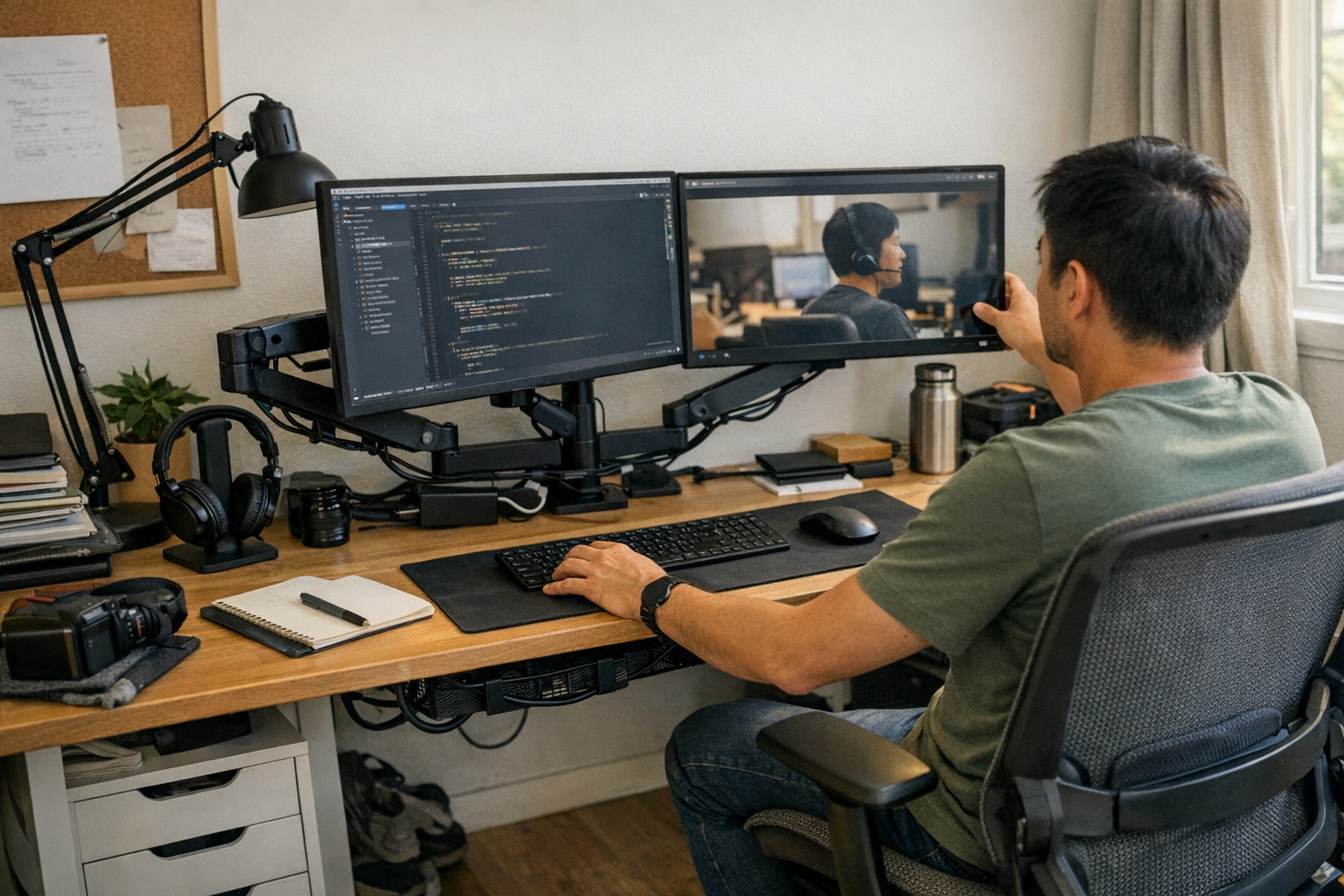
Two monitors on arms should streamline your desk, not trap you in a slow-motion breakdown. It starts clean: both displays aligned, arms clamped tight, cables tucked just out of sight. But by your second or third real work session—switching between email, browser tabs, document editing—something unwanted drags its way in. One monitor edge sags lower, a cable pops up into view, or the screens drift out of symmetry each time you reset your chair. What looked stable quickly demands another round of hand adjustments, shifting and straightening, or outright unraveling the cable channels. The reality: a “fixed” setup that keeps slipping, forcing constant corrections, eating up attention, and crowding the desk surface you thought you’d regained.
A Setup That Looks Stable—Until You Start Moving Monitors
A pair of monitors, no visible clutter, clamp hardware hidden by laptop stands or desk organizers—it’s a workspace worth displaying in a team call. That illusion collapses the moment real work begins. Tug a monitor closer to work on a spreadsheet, swing the left arm sideways to pull up a notebook, or try adjusting both screens for clearer lighting—and you find resistance on one side, drooping on the other, and cables suddenly straining against their tie-down points. One display sags back, leaving the center gap off by a finger width. Even a slightly heavier monitor, a charger plugged in the wrong spot, or cables routed too tightly can warp the whole system. Each hands-on “fix” creates a new imbalance, and by midweek, the supposed clean setup requires more resets than before you brought in monitor arms.
Desk Depth Disappears Faster Than You Think
Actual desk depth can’t keep up with dual arms in action, especially on workstations under 24 inches deep. Even if the surface looks clear—a keyboard, notebook, maybe a compact drawer unit—the physical reach gets crowded. Picture two large screens and a laptop stacked above a shallow under-desk bin. Move one screen a few inches forward to zoom in on code, and suddenly a cable bundle scrapes the pencil tray or drops into view across the open notepad. Each pivot for a video call or reference check reintroduces slack, reroutes tension, or crowds the corner where you try to take written notes. After several cycles, the ergonomic upgrade starts to feel more like a rotating puzzle: arms fighting for position, cables never quite tamed, and “usable” desk space shrinking with every new shift.
Subtle Imbalance Signals That Add Up
It’s rarely a catastrophic slip—just a cascade of small, repeating cues that scream for attention during normal use. Watch for:
- Monitor edges that drift out of level by the end of a typing session
- Cable sleeves easing out and dangling, no matter how tightly tucked
- Displays that won’t sit quite parallel, requiring a twist every time you log back in
- Stiff motion in one arm that no longer matches the other’s tension
Ignore the early warning signs and you pay in lost flow and micro-distractions. Each return to the desk turns into a ritual: rebalance, tuck, reset—a “solution” that keeps demanding your energy.
Centering Weight Changes Everything
After enough looped fixes and sidelong glances at a still-tilted display, the breakthrough comes: true balance isn’t about how “neat” things look, but how the actual weight rides the arm hardware each time you move. Instead of just eyeing the bottom edges, align both monitors so their combined center of mass is directly above the clamp and desk edge. Reset the cable channels and leave a purposeful three-inch slack just beyond the mount—no tension, no drag. Once weight and cable paths are centered, each monitor moves on its own, without sending the other off course. The impact is immediate: the desk stays in working shape from session to session, not just after a major reset. No slow-motion drift, no cable snags sliding out with every arm swing.
Desk Flow: What Actually Gets Easier
The upgrade isn’t about perfect alignment—it’s about stepping out of the cycle of correction:
- Monitors remain level, regardless of how often you adjust them in a day.
- Cables stay out of sight, freeing you from the repeated urge to hide them after every session.
- Returning to the desk becomes a non-event: no scramble to center the screens, no reach-around to tuck loose power cords.
- Switching focus between tasks is fluid, not awkward or blocked by a misaligned display.
Most telling: repositioning a screen doesn’t set off a domino effect of small failures elsewhere. You’re not wrestling hardware or chasing moving targets—the desk starts working with you, not against you.
Real-world Q&A: Identifying and Correcting Imbalance
How do you know your monitor arm is out of balance?
If your screen sags, twists, or creeps out of position with normal use—or if cables slowly squirm back into your work area—you’re facing imbalance. Needing frequent “just right” nudges to keep both displays aligned is your sign that the setup is drifting, not staying set between sessions.
Does it really matter if one monitor is bigger or heavier?
Absolutely. Even modest weight differences throw off most arm setups. Adjustable tension helps, but doesn’t solve the root problem if you haven’t centered the load. The heavier monitor wins—pulling that side down at the pivot or wrenching the arm farther than intended—forcing more resets over time.
Is there a simple fix once monitors start drifting?
The most effective fix is hands-on: loosen brackets, adjust both screens to the working position you use most, and tighten with the center of mass directly over the pivots. Make sure to leave at least an inch or two of slack in cables where arms rotate—tight routing is the single biggest source of drift or cable pop-out over repeated use. A small, tidy cable loop at the pivot point prevents day-to-day slippage and the need for unplanned mid-week rewiring.
Why Centered Arms Outperform a Neat-but-Uneven Setup
There’s a real difference between a workstation you can trust to “hold” and one that quietly slides out of alignment behind your back. Monitors that slip and cables that squirm create invisible friction: extra eye strain, little lags when you hunt for a centered view, cables drooping into the under-desk storage path. Even storage drawers or cable trays work better when the main visible gear stays put. Centered weight in a dual arm setup is the hidden backbone of a desk you don’t have to babysit—and one that actually lets organizers, risers, and bins all do their jobs without new workflow obstacles popping up.
The Takeaway: Ongoing Corrections or a Trustworthy Desk?
The real benchmark isn’t a desk that looks organized—it’s one that responds instantly, stays reset between long sessions, and never forces you to repeat the same manual tweaks every day. When weight and cables are centered, friction fades: no more hidden surprises when you return, and no more lost time to endless micro-fixes. You get back a usable work surface, ready for whatever needs to happen next.